Before you start
Signing in
Sign in with the email and password issued for your organisation. The app keeps you signed in on that phone, so this is normally a one-time step.
Choosing a building
After signing in you pick the building you are working in. Everything afterwards — rooms, items, counts, searches — is scoped to that one building, which is what stops a move in Brussels showing up in the Paris numbers.
You can change building at any time from the building name at the top of the screen. The app remembers the last one you used.
The four tabs
| Tab | What it is for |
|---|---|
| Home | The building at a glance, and the quickest way into the common jobs. |
| Rooms | The building’s structure — floors, and the spaces on each floor. |
| Assets | Every product in the building, searchable and filterable. |
| Scan | The camera, for opening a tagged item or applying a new QR label. |

Home, in detail
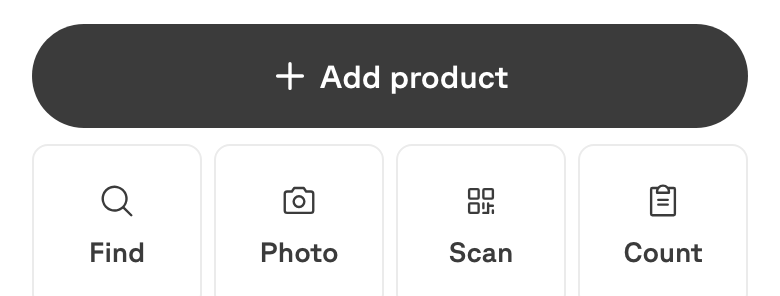
Home opens with the building’s headline figure — how many items are in it, and across how many spaces — then the five things you are most likely to be doing: Add product, Find, Photo, Scan and Count.
Below that:
- Pick up where you were — the room you were last working in.
- Pick the room you are in — straight into a space, without going via Rooms.
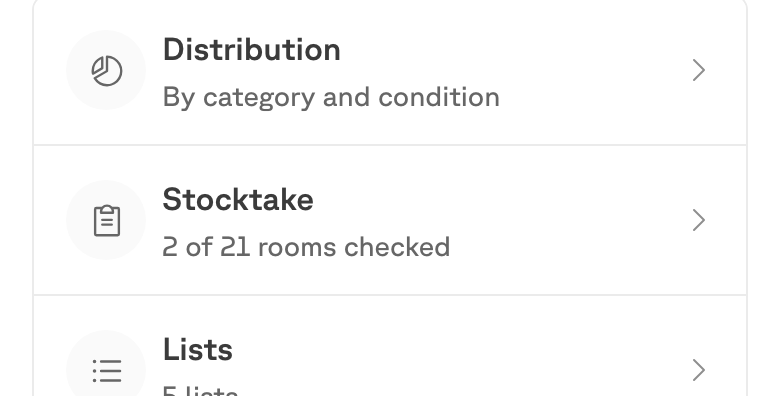
- The building — Distribution (by category and condition), Stocktake, and Lists.
- Needs a look — anything that has been flagged and not yet resolved.
- Recent changes — what you have changed today, with undo while it is still safe.
To add more of something that already exists, open its room rather than creating the product again. Add product is for something genuinely new to the building’s catalogue.