Tag an item with a QR code
Most inventory is counted as a quantity: eleven chairs in Meeting Room A. That is enough for almost everything. Tagging is what you do when one unit has to be followed on its own.
Attaching a Relieve QR label turns that one unit into a tracked item: it gets its own screen, its own history, and its own comments. The chair stops being one of eleven and becomes a thing the app can talk about.
When it is worth it
Tag an item when the answer to which one? matters:
- It is unusually valuable, or easily walks off.
- It has a service or repair history worth keeping with the object.
- It keeps turning up missing, and you want to know which one.
- Somebody needs to report a fault on it — a comment can only be left on a tracked item. See Flag one that needs attention.
Do not tag by default. Six identical chairs in a store room are easier to manage as a six, and every tag is a label somebody has to stick on and a code somebody has to scan at every future count.
How it goes
The shape of it is simple: find the item in the app, then hold your phone up to a QR label. Everything else is the app making sure the label lands on the right unit.
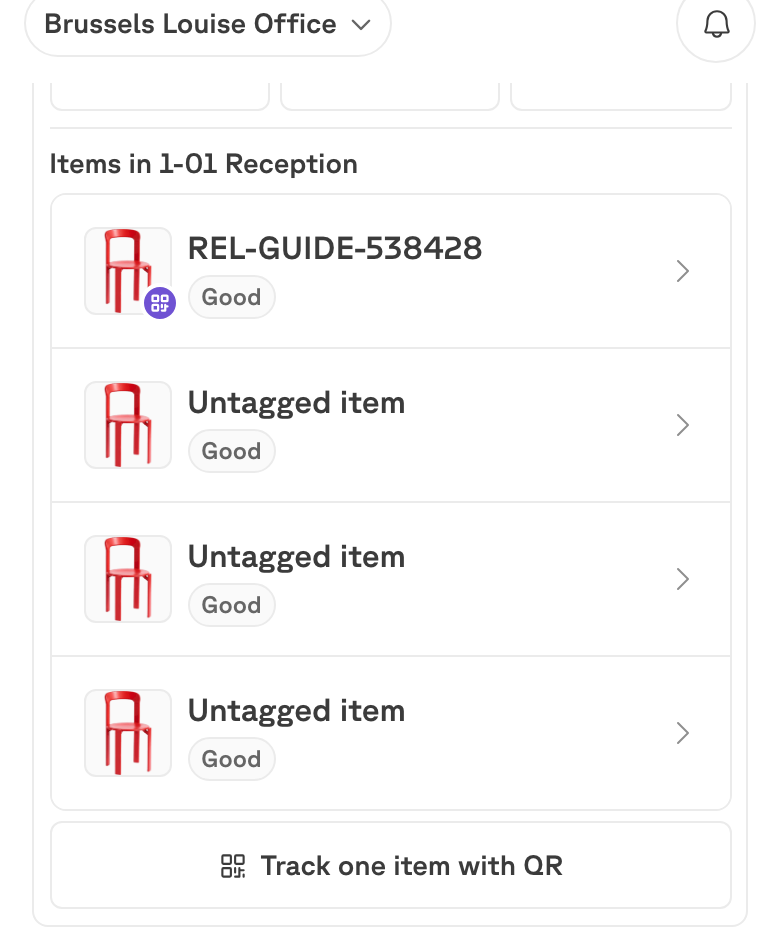
Find the product, and open the room you are standing in
Reach the product however you like — Assets, Find, or by scanning something else in the room. Then open the room row under Where it is.
This matters. The label is going onto a unit in that room, and the app needs to know which room so the count stays right.
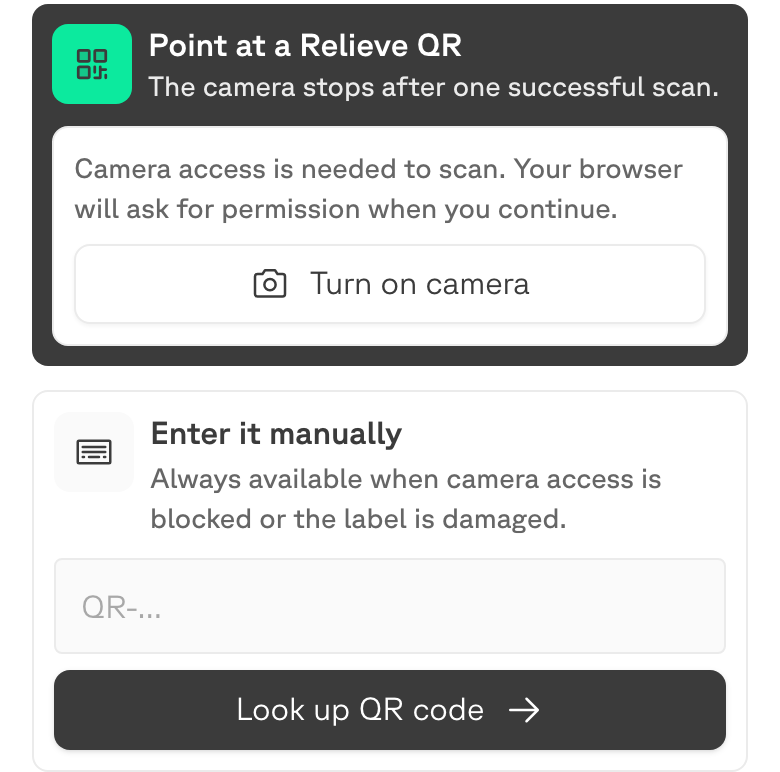
Read the code
Hold the camera up to a Relieve QR label. The camera stops after one successful scan, so you do not have to aim twice.
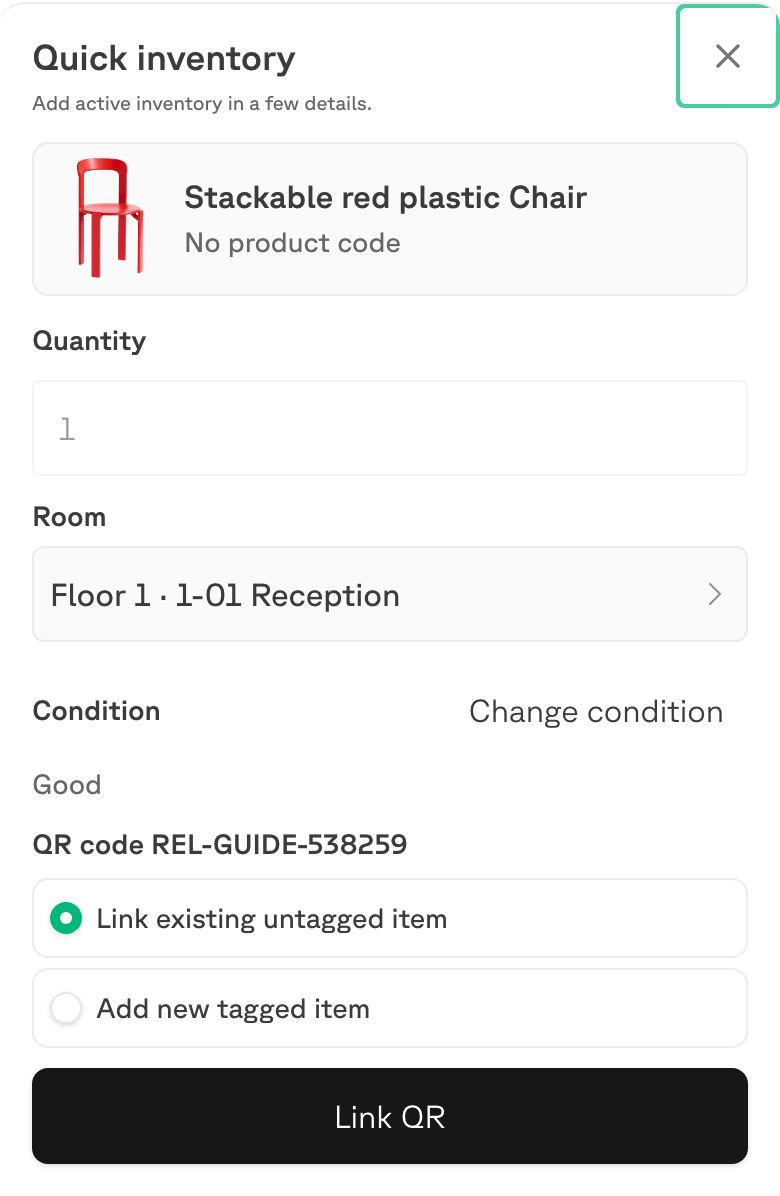
Say what the code means
An unused code can mean one of two things. For labelling something you already have, choose Link existing untagged item, then Link QR.
What changes
The room’s split shifts by one: Tracked with a QR code goes up, Counted as a balance goes down.

The building’s total does not move. You have not added anything; you have started following one of the units you already had.
What you get afterwards
The item now appears under Tagged inventory on the product, with its code and the room it is in.
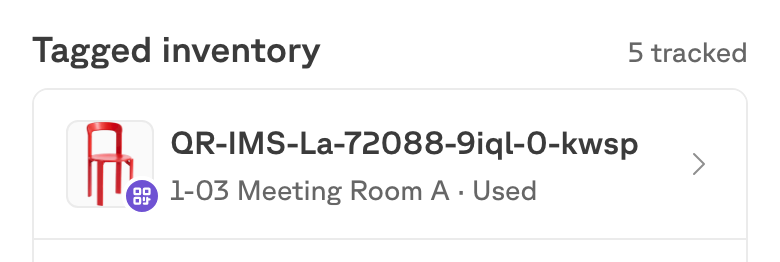
Opening one gives you its own screen, which is where its history lives and where somebody can report a problem with it. From here on, scanning its label from the Scan tab opens it directly — the fastest way to answer what is this thing? while standing in front of it.
Scanning a code that is already in use
- A code on an item opens that item. Nothing is changed.
- A code that belongs to a different product is refused. Rather than silently move the label, the app offers to show you the item it already belongs to.
A QR code is tied to one item for good. If a label is destroyed, tag the unit again with a fresh code rather than trying to reuse the old one.
Tagging is not flagging
They are easy to confuse, and they do different jobs:
| What it is | What it changes | |
|---|---|---|
| Tagging | Giving one unit a QR label so it can be followed on its own. | How the item is counted and identified. It is a setup step. |
| Flagging | Leaving a comment that says something needs attention. | Puts the item in the building’s queue until somebody resolves it. |
Tagging is a prerequisite for flagging: you cannot comment on a quantity, only on a thing. If you need to report a fault on an untagged unit, tag it first, then flag it.