Find it and act on it
This is the everyday one. Something has moved, been damaged, or left the building, and you are standing next to it. The job is to find it in the app and record what happened — in that order, because acting from the room you found it in is what keeps the record honest.
Finding it
Assets lists every product in the building and opens with a count of how many of them you are looking at — n of n products in this building — which narrows as you search or filter.
- Search by name.
- Filter by category, condition and more.
- Sort A to Z, or by recently updated.
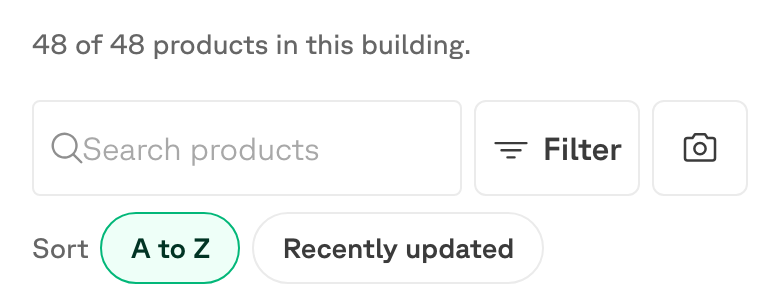
Find (from Home) does the same job but also lets you photograph the item or scan its QR label instead of typing.
Acting on it
Open the product and scroll to Where it is. Each room it occupies is a row showing how many are there. Open the row for the room you are standing in, and three actions appear:
| Action | What it records |
|---|---|
| Move | Some or all of them going to another room. |
| Condition | A new grade — the item is more worn, or has been repaired. |
| Remove | They have left the building: donated, sold, recycled, scrapped. |
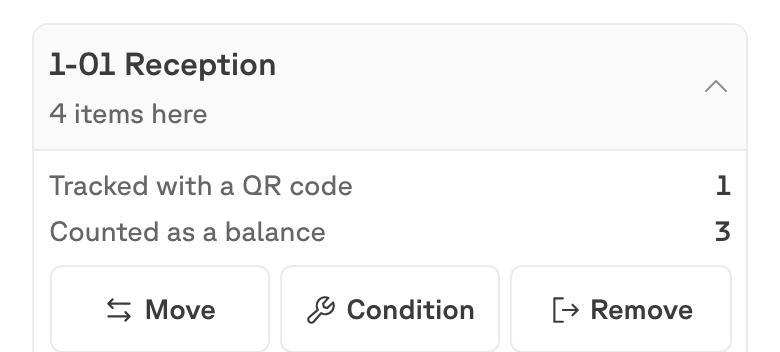
Each one asks how many, and Move and Remove ask where to or why. The row also breaks the count into Tracked with a QR code and Counted as a balance — see How counting works for what that distinction means.
Every one of these leaves a toast with Undo on it. Undo is available for as long as the change is still safe to reverse — take it immediately if you tapped the wrong row.
Add quantity
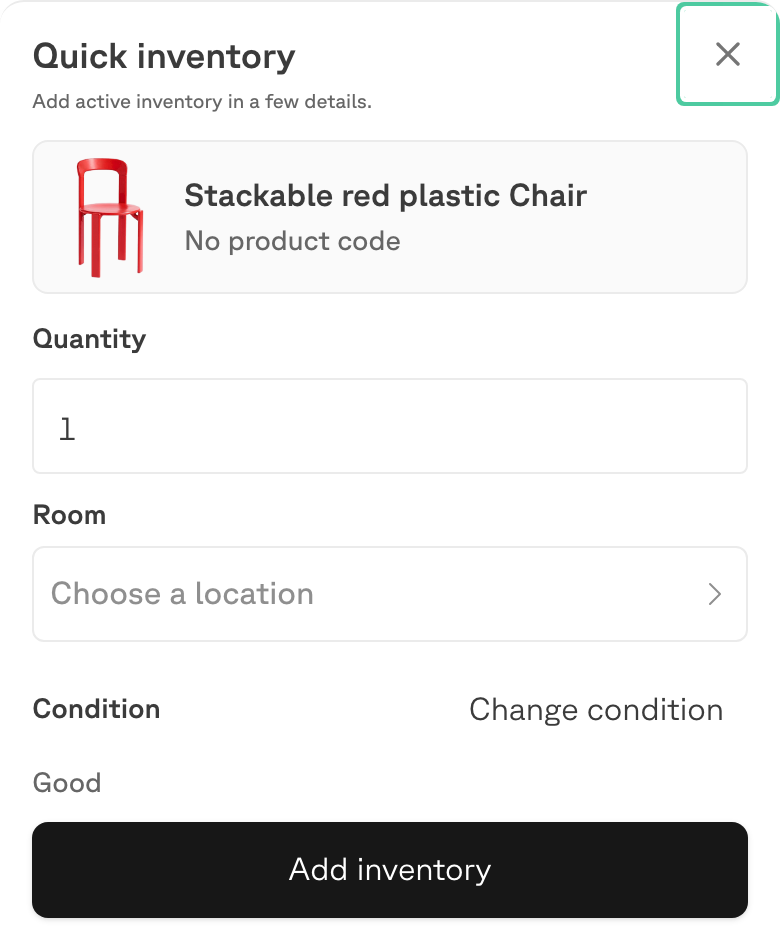
The other half of acting on what you found: there is more of it here than the app thinks. Add inventory — on the product, or on the room you are standing in — opens the same short sheet: how many, which room, what condition.
What you choose here decides whether the app follows the units as a number or one by one.
Adding untracked items
Leave the QR out of it. Say how many and where, pick a condition, and Add inventory. The units join that room’s Counted as a balance figure: real inventory, counted as a quantity, with no individual record.
This is the right choice almost always. Six identical stacking chairs arriving in a store room do not each need a history.
Adding a tracked item
Scan an unused Relieve QR first — from Scan, or Track one item with QR inside the room row. Once the app has read a code, the sheet offers two things it can mean, and the quantity fixes itself to one, because a code identifies exactly one item:
| Choice | What it does to the count |
|---|---|
| Link existing untagged item | Nothing. One unit already in the room becomes tracked — the balance goes down by one as the tracked figure goes up. |
| Add new tagged item | Adds one. A unit that was not in the room before arrives, already carrying its code. |
The first is for labelling something you already have. The second is for something arriving that you want to follow from the start.
Only “Add new tagged item” changes the building’s total. Linking a code moves a unit between two columns of the same room — see How counting works.
Why act from the room
It is tempting to look for a single “move item” button. There isn’t one, on purpose: the room row is the only place that knows how many are in front of you, so acting from it is what stops a move of two becoming a move of twenty.